
Feature
Booking requests from your own opening hours
Customers pick a day and a time from your opening hours and send you a booking request, on every plan. A request waits until you answer it: confirming or declining it is on Pro, in your diary.
A customer you confirm hears back by email, with the time, your phone number and a link to add it to their calendar, and by text if they gave a UK mobile number. A customer with a UK mobile may leave no email, and then gets the text alone.
What your customer sees
They pick a day, then a time
Book an appointment shows the days you open, then the times still open on the day they pick, from 2 hours ahead to 14 days ahead. Where you offer services, they choose one too.
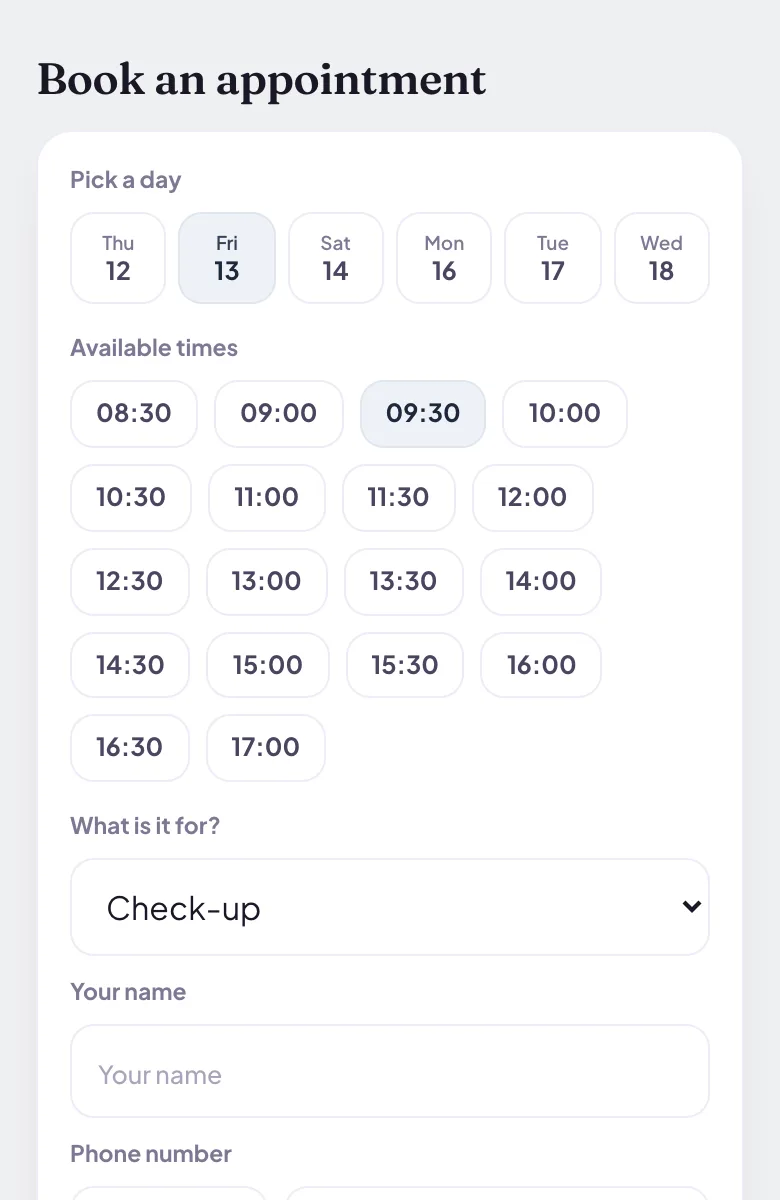
Example page, made by Blinx: Book an appointment, with a day picked, the times it offers and a choice of service. Their name and number, then Request
They leave their name and phone number, and an email, which they can leave out with a UK mobile number. The button says Request, with the day and time on it, because you have not said yes.
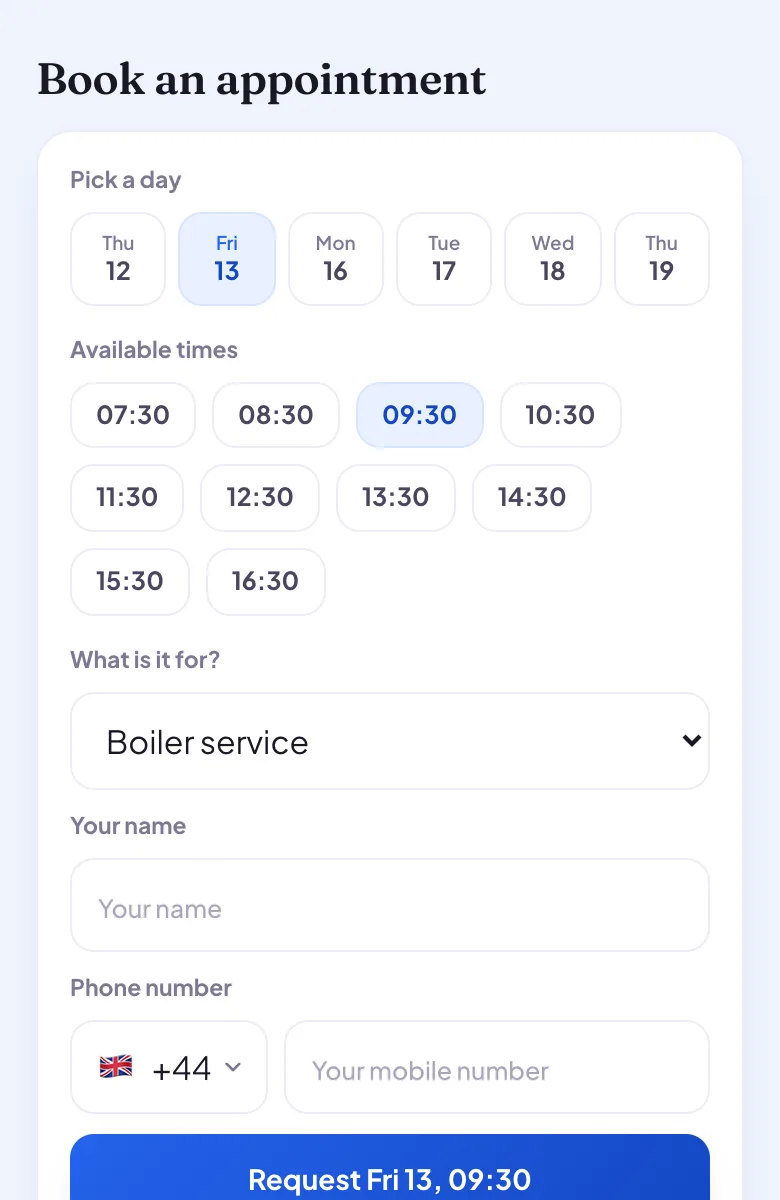
Example page, made by Blinx: a time picked, a service chosen, and the Request button with the day and time on it. Request sent
On Pro they read "They will confirm with you directly." When you confirm, they hear back by email if they left one, with the time, your number and a link to add it to their calendar, and by text if they gave a UK mobile number. On the basic plan they are told the request was sent to you, with no promise of a confirmation.
What you see
Every request reaches you. On Pro it is emailed to you with the customer's name, number and the time they asked for, and with Alerts on this phone switched on in Settings, your phone buzzes as well.
The Diary tab in your app lists the requests waiting for your answer first, then confirmed bookings, then earlier ones. On Pro each shows the customer's name and number, with Confirm and Decline, and a confirmed booking has Add to calendar: one tap opens Google Calendar with the booking filled in. Your Leads tab counts the requests waiting and opens the diary.
On the basic plan the diary shows each request's time and the customer's initials, and how many are waiting. The first time somebody gets in touch on a day, an email says so, without their name.
In the editor, the booking section's settings: how long an appointment is, 30 minutes unless you choose 15 minutes to 3 hours; one customer per time, or several; which open days take bookings; and, once your price list has services, a length for each service.
Which plan
Customers can ask to book on every plan. Seeing who asked, and confirming or declining, are on Pro, and on every page during its trial.
| On your page | ProDuring the trial, and when you go Pro | BasicAfter the trial, at no charge |
|---|---|---|
| Leads inbox: who got in touch, and their message | Yes | You see how many are waiting, not who |
| Booking requests from your opening hours | Yes, answered in your diary | Yes: customers can ask; seeing who asked needs Pro |
If you stop paying, your page stays
Your page stays live on the basic plan and nothing is deleted. The Pro features come back when you go Pro again.
What it does not do
- Blinx does not sync with a Google or Apple calendar. Add to calendar puts a confirmed booking in Google Calendar in one tap, and cancelling the booking in Blinx leaves that calendar entry where it is.
- It takes no deposits or payments.
- It does not block out a holiday or a single date: the days that take bookings are set by day of the week.
- It sends no reminders before an appointment.
- Declining or cancelling sends the customer nothing, so let them know yourself.
- No time is offered less than 2 hours ahead, or more than 14 days ahead.
- No opening hours, no times: the booking section stays hidden until your hours are set, and a day whose hours run past midnight offers no times.
By trade
- Website for dentists: a choice of service as the customer books, each service with its own length.
- Website for physiotherapists: on Pro, requests answered in your diary, then Add to calendar once you confirm.
- Website for beauty salons: treatments from your price list as services, each with its own appointment length.
- Website for barbers: one customer per time or several, with every time inside your opening hours.
Questions about booking requests
Do I have to set up booking times separately?
No. The times come from the opening hours already on your page, so there is nothing else to fill in. A closed day offers no times, and the last time on a day leaves room for the appointment before you close. In the editor you can also switch off bookings on any open day of the week.
Can two customers book the same time?
Not while One customer per slot is on, which it is unless you turn it off. Once somebody asks for a time it disappears from your page, and if two people ask for it in the same moment, the second is refused. A declined or cancelled request frees the time again. With the setting off, several people can pick the same time.
What happens on the basic plan?
Customers can still pick a time and send a request, and they are told it was sent to you, with no promise of a confirmation. Your diary shows each request's time and the customer's initials, and how many are waiting. Seeing who asked, and confirming or declining, need Pro, and nothing is deleted in between.
Does it sync with my Google Calendar?
No. When you confirm a booking, Add to calendar opens Google Calendar with the booking filled in, so it lands in the calendar you already use in one tap. Blinx does not read your calendar or keep it in step: if you cancel a booking in Blinx, the calendar entry stays until you delete it.
How long can an appointment be?
30 minutes unless you choose otherwise, from 15 minutes to 3 hours. If your price list has services, you can switch on service-level appointments and give each service its own length, and customers choose the service as they book. The times on your page are spaced by the general appointment length you choose.
Try Blinx for 15 days
Your page, filled from your Google listing, ready to share as a link or a QR code.
15-day trial, no card. Nothing is deleted if you stop.