
Feature
A QR code for your van, your shop and your cards
Every Blinx page has its own QR code, on every plan. It opens your page's own address, so a scan always shows your latest page, and every scan is counted in your page's activity.
Save it as a picture for your van, your window, your cards or your invoices.
What your customer sees
They scan your code
On your van, your window, a card or an invoice, the camera on their phone reads the code.
Your page opens
The code opens the same page as your link, at your own address, with everything you have changed on it since you printed the code.
One tap to reach you
From there they call you, get directions or ask to book, each in one tap.
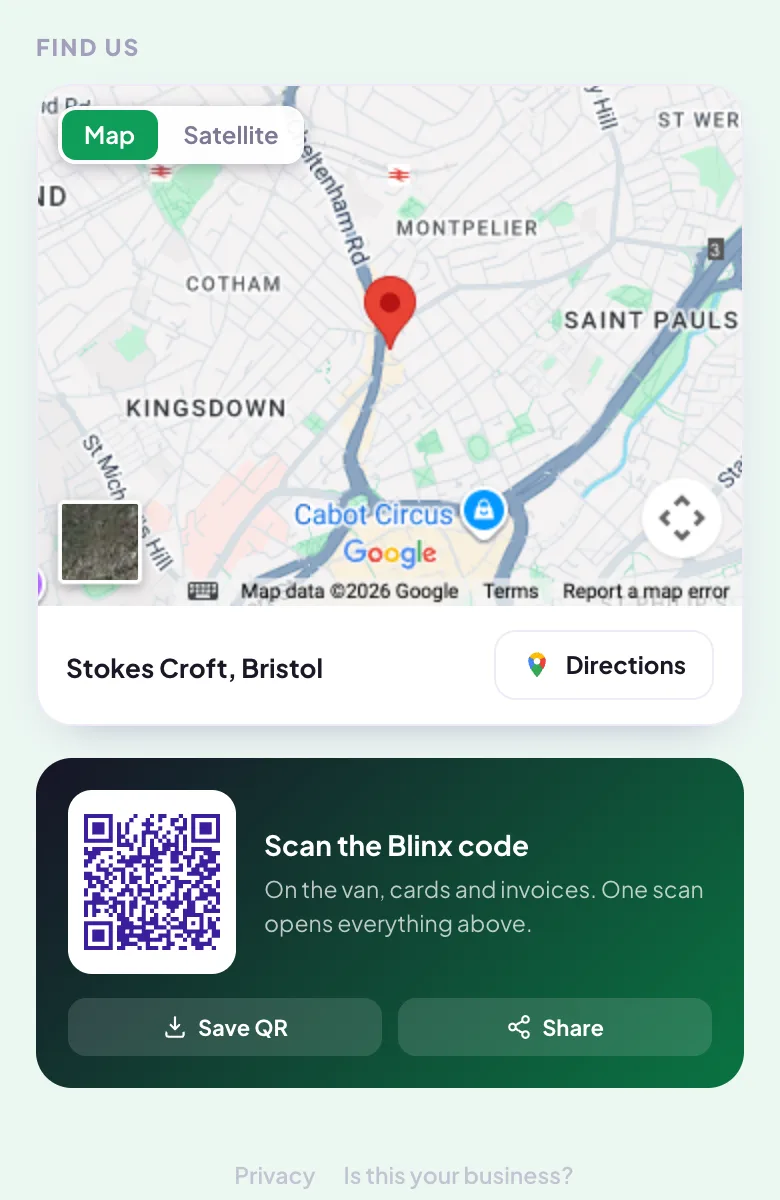
Example page, made by Blinx: the Find us map near the foot of the page, then Scan the Blinx code with Save QR and Share.
What you see
In the editor, Your QR code: the code itself with Save QR and Share, and your page's address under it. Both buttons make a picture of the code, 1,024 by 1,024 pixels on a white background, ready to print or send.
The same code is at the foot of your live page, under "Scan the Blinx code", with Save QR and Share, so anybody can pass it on.
Every scan is counted in your page's activity, with your views and taps over the last 7 days, on every plan. On Pro, an enquiry that began with a scan says so: its journey shows "Scanned your QR code", and the email about it says they found you through your QR code.
Which plan
The QR code is on every plan, and so is the count of its scans in your page's activity.
| On your page | ProDuring the trial, and when you go Pro | BasicAfter the trial, at no charge |
|---|---|---|
| QR code for your page | Yes | Yes |
| Your page's views and taps | Yes | Yes |
If you stop paying, your page stays
Your page stays live on the basic plan and nothing is deleted. The Pro features come back when you go Pro again.
What it does not do
- One code per page. It opens your page itself, not a section of it or a link of your choosing.
- The code looks the same on every page: its colours and shape are not changed to match yours.
- Blinx prints nothing and sends nothing by post: you save the picture and print it where you like.
- It is not a review link. A code for your Google reviews is a different job, which the review QR poster makes from your own Google review link.
By trade
- Website for plumbers: one code for the van, the cards and the invoices.
- Website for restaurants: a code for the window that opens the page with your hours on it.
- Website for cleaners: a code for leaflets and invoices, with every scan counted.
- Website for electricians: a code on the van that keeps working when the page changes.
Questions about the QR code
Will the code still work if I change my page?
Yes. The code opens your page's address, not a copy of the page, so every scan shows your page as it is that day. If you rename your business and its address changes, the old address keeps working and sends people on to the new one, so a code already printed carries on working.
Can I see how many people scanned it?
Yes. Every scan is counted in your page's activity, which shows QR scans, page views and taps over the last 7 days, on every plan. On Pro, an enquiry that began with a scan also says so in its journey, so you can see which enquiries the code brought in.
What size should I print it?
Test it before it goes on anything. Print a sample, scan it with two or three different phones from where people will stand, in daylight and after dark, and leave a plain margin round the code. If any phone struggles, print it larger and test again before the final print.
Can I get a code for my Google reviews?
Not from this code, which always opens your Blinx page. A code for your Google reviews needs your Google review link instead. The review QR poster tool on this site makes one, with a poster to print, in your browser and with no account needed.
Try Blinx for 15 days
Your page, filled from your Google listing, ready to share as a link or a QR code.
15-day trial, no card. Nothing is deleted if you stop.